Search Console plugs in once per Google account, and every property that account can see becomes a dropdown choice when you set up a site. Connect the account, pick the right property per site, done.
Connect the account
On the Organisation page, go to Integrations → Google and connect the Google account. It’s the same grant that powers GA4 — one Google connection covers both. Sign in with the account that already has access to the properties you care about, usually the one Search Console was set up under. (If you’ve already connected this Google account for GA4, you’re done here — skip to picking the property.)
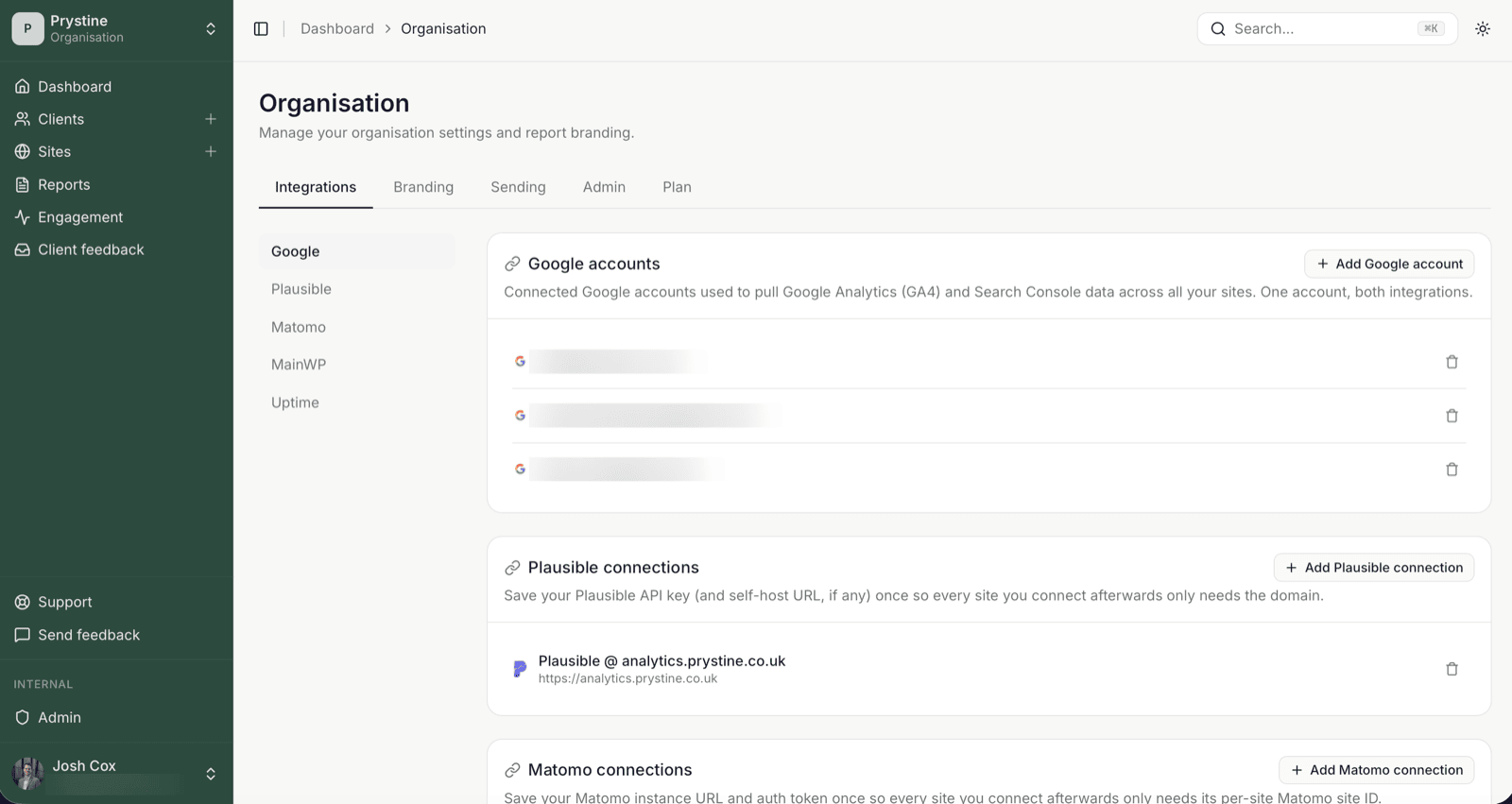
A few things worth knowing before you click:
- The connection lives at the organisation level, not per site. One grant covers every property that account can see.
- You can connect more than one Google account if your properties are split across logins; each account becomes its own credential.
- Read-only scope. SendTidings pulls performance data; it can’t change anything in Search Console.
Pick the property per site
This is where most people pause. The connection gives SendTidings access to a list of properties. The site is where you choose which one applies.
Open the site, go to its Search Console section, and pick the property from the dropdown. The list is filtered to whichever Google account holds that property; if you’ve connected two, you’ll see both sets.
A couple of patterns that trip people up:
- Domain property vs URL-prefix property. If you’ve got both verified for the same site (e.g.
example.comandhttps://www.example.com/), they’ll both appear. The domain property is usually what you want — it covers every subdomain and protocol. - No properties showing? The Google account you connected doesn’t have access to that property in Search Console itself. Add the account as a user there first, then refresh the dropdown.
Heads up on Google’s 7-day token thing
If this is a brand-new Google Cloud project on your side (only relevant if you’re self-hosting or running your own OAuth app), Google keeps OAuth apps in Testing mode by default and refresh tokens expire after 7 days. You’ll get a re-auth prompt every week until the app’s verified.
On hosted SendTidings this is handled: you can skip this section. On self-host, submit your OAuth consent screen for verification once and the 7-day clock goes away.
What ends up in the report
Once a property’s picked, the monthly report pulls clicks, impressions, average position, and top queries for the period. You don’t need Search Console connected to send a report; if you’ve got analytics or uptime on the site, that’s enough on its own. Search Console just adds the organic-search angle.
See also: Connect Google Analytics 4 · Primary provider explained