Connect GA4 once per Google account: that grant covers every GA4 property the account can see. If you manage clients across two or three Google accounts, you’ll connect each one separately.
That’s the whole model. The rest of this is just how to do it and what to do when something looks off.
Connect a Google account
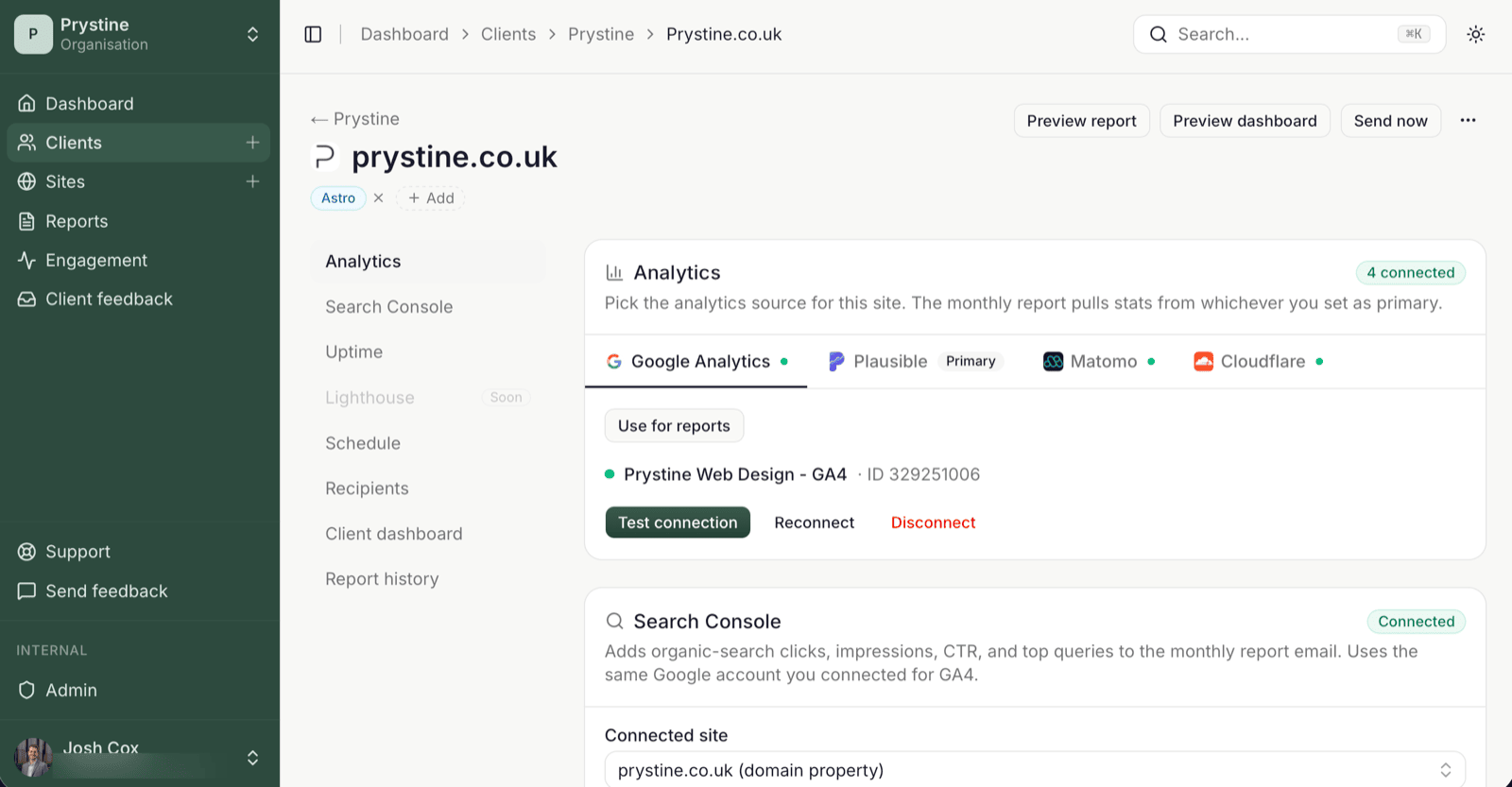
From the site’s Analytics section, open the Google Analytics tab and start the connect. You’ll bounce to Google’s consent screen, pick the account that holds the GA4 property, and approve the read-only scopes. You land back on the site with the property picker ready. (You can also connect the Google account up front on the Organisation page → Integrations → Google; either way the grant is shared across the org.)
Pick the property, save, and you’re done for that account. Any other site in your org that uses the same Google account can reuse the grant: no need to reconnect.
Multi-account setups
If your agency runs clients across more than one Google account, here’s the shape:
- One grant per Google account, stored at the org level.
- Each grant exposes whichever GA4 properties that account can see.
- Connecting a second account doesn’t replace the first; they sit side by side.
So when you open the property picker on a new site, you’ll see properties from every connected Google account in one list. Pick the right one, save, move on.
The friction people hit: assuming one connection covers everything. It doesn’t. If a client’s GA4 lives in a Google account you haven’t connected yet, the picker won’t show it. Add the account, then come back.
Primary provider matters
GA4 isn’t the only analytics source SendTidings reads. If a site has both Plausible and GA4 connected, only one of them — the chosen report source — feeds the monthly report. If your report shows 0 visitors but GA4 clearly has traffic, the report is probably still pointed at Plausible (or whichever provider has no data on that site).
Switch it with Use for reports in the site’s Analytics section — takes effect on the next report.
The 7-day Google thing
Worth flagging once: if your Google Cloud project is still in Testing mode on the OAuth consent screen, Google expires refresh tokens after seven days. The grant will quietly stop working and you’ll need to reconnect. This bites every agency that’s new to Google OAuth.
Two options: move the consent screen to Production (Google’s verification, takes a bit), or accept the weekly reconnect for now. SendTidings will email you when a grant expires, so you won’t find out from a broken report.
Disconnecting
Disconnect on the Google account (Organisation → Integrations → Google) removes the grant entirely: every site relying on that account needs a new connection. Dismiss is different — the Dismiss alert button on a dashboard connection-health warning just clears that warning; it doesn’t reconnect anything. Don’t mix them up.
See also: Primary provider explained · Google account stopped working after a week