Start with one site, not ten
The fastest path from empty account to a real report in a real inbox is to set up one site end-to-end before you touch the others. Connect your analytics once at the org level, add a site, point it at that connection, and schedule the send. That’s it: the rest is repeating step three.
1. Connect your analytics (once)
Before you add any sites, open the Organisation page and go to Integrations, then link whichever analytics tool you actually use: GA4, Plausible, Matomo, or Cloudflare. You only need one. Search Console and uptime are nice-to-haves, not requirements.
This is the bit people miss: these connections live at the org level, not the site level. Connect Google once and every site you add from now on can use it. No re-typing API keys, no re-doing OAuth per client.
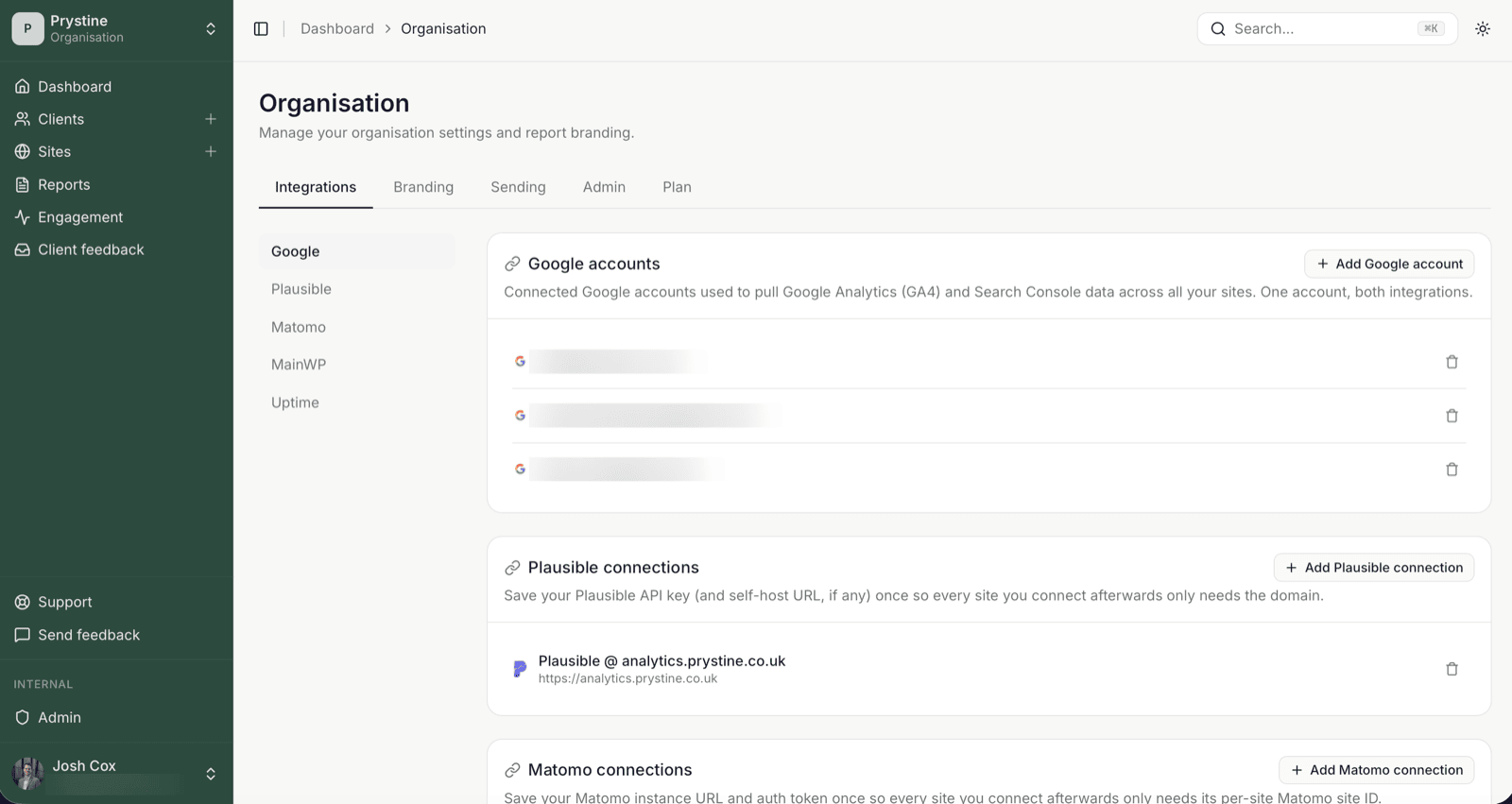
If you’re using self-hosted Plausible or Matomo, you’ll add the instance URL here too. Multiple instances are fine; you’ll pick which one each site uses when you add it.
2. Add the site
Hit Add site from the dashboard. You need three things:
- The site’s public URL (this is what shows up in the report header)
- A friendly name for your own reference
- Which client it belongs to, if you’ve set clients up; skip this for now if you haven’t
Save it. The site exists. It just doesn’t know where to get data from yet.
3. Pick a primary provider
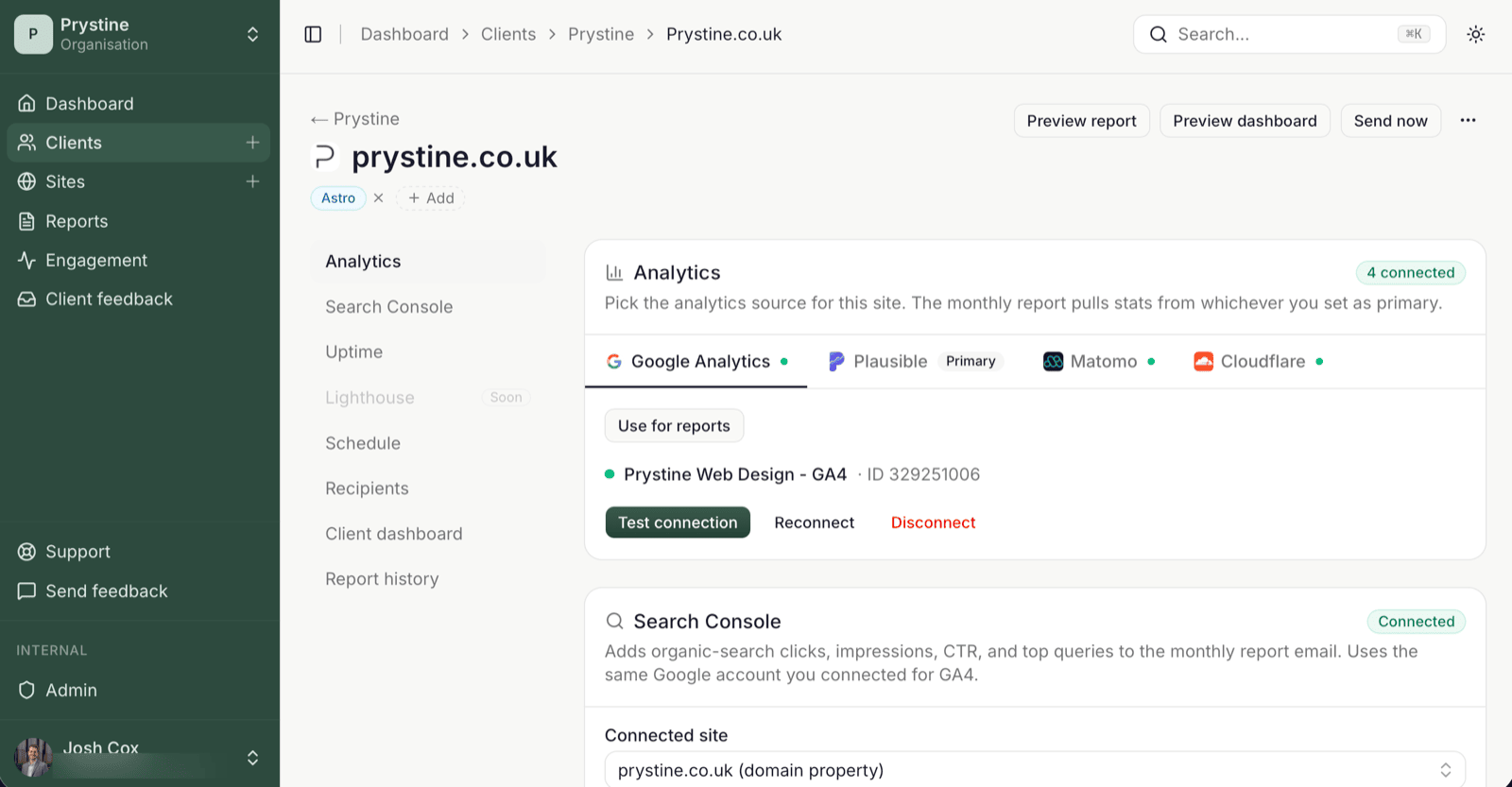
This is the step that catches people. A site can have GA4, Plausible, and Search Console attached, but only one of them is the primary provider — that’s the source the monthly report’s visitor numbers come from.
Open the site, go to the Analytics section, and click Use for reports on the one with actual data. If you wire up Plausible but the site’s been on GA4 for two years, set GA4 as the one used for reports or your first report will show zero visitors. (The button only shows once two providers are connected — with one, it’s already the source.) Easy to miss.
4. Add recipients and schedule
Under Recipients, add the client’s email address (and yourself, if you want to see what they see). Recipients are per-site for now; there’s no org-wide “always cc me,” sorry.
Then set the send day. The reports go out monthly, on whatever day of the month you pick, covering the previous calendar month. First report lands on the next occurrence of that day.
5. Send one now, to be sure
Don’t wait three weeks to find out something’s wrong. Use Send now on the site detail page: this generates a real report and ships it to your recipients exactly as the scheduled send would.
One important gotcha: Send now and Send test are different. The test button (on the site’s report preview) is fine for checking the layout — it goes to your own inbox — but it doesn’t record a real send, so it won’t show up in history and opens won’t track. For a proper end-to-end check, use Send now and put yourself on the recipient list.
That’s the loop. Add the next site, point it at the same connection, pick its primary, add recipients, done. Connect once, send forever.
See also: Primary provider explained · Send test vs Send report